Configuring Your Store
Follow this guide to connect your e-commerce store to the Armoris agent pay gateway. We currently provide native support for WooCommerce, with other platforms coming soon. You'll need access to both your store admin panel and the Armoris dashboard.
Armoris Merchant Integration
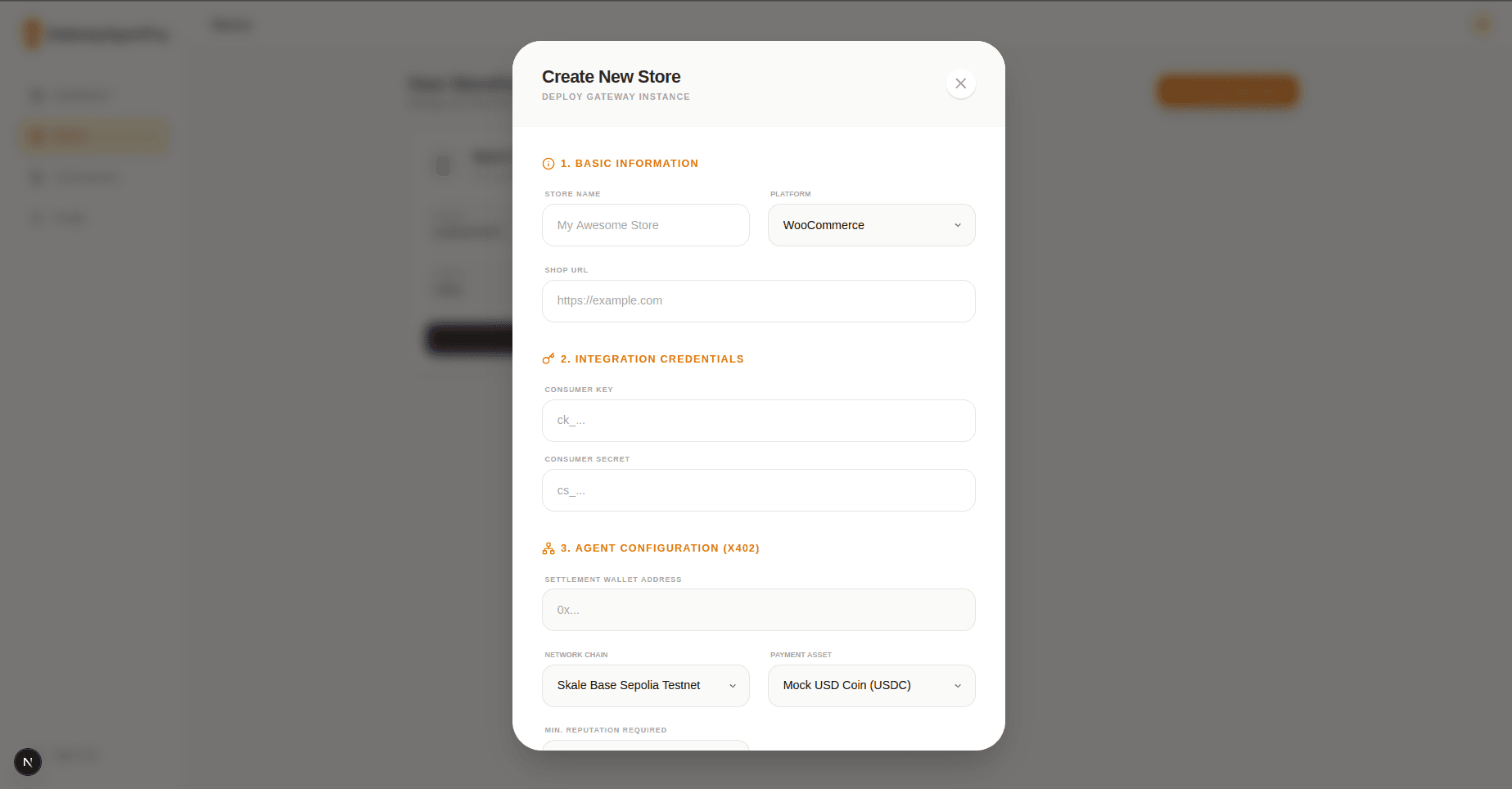
Start by registering your store in the Armoris dashboard. This creates a secure connection for processing payments.
Create a New Store
Click "Add New Store" in the gateway dashboard. Select WooCommerce (or your respective platform) and enter your domain.
Generate Client Secret
When you create the store, a Client Secret will be generated. Copy this immediately as it won't be shown again. You will need this to configure the plugin.
Store ID: 95c40...
Wallet & Asset Configuration
Enter the wallet address where you want to receive funds and select your preferred settlement asset (e.g., USDC).
Platform Configuration
Configure your specific e-commerce platform below to connect it with the Armoris gateway.
WooCommerce Integration
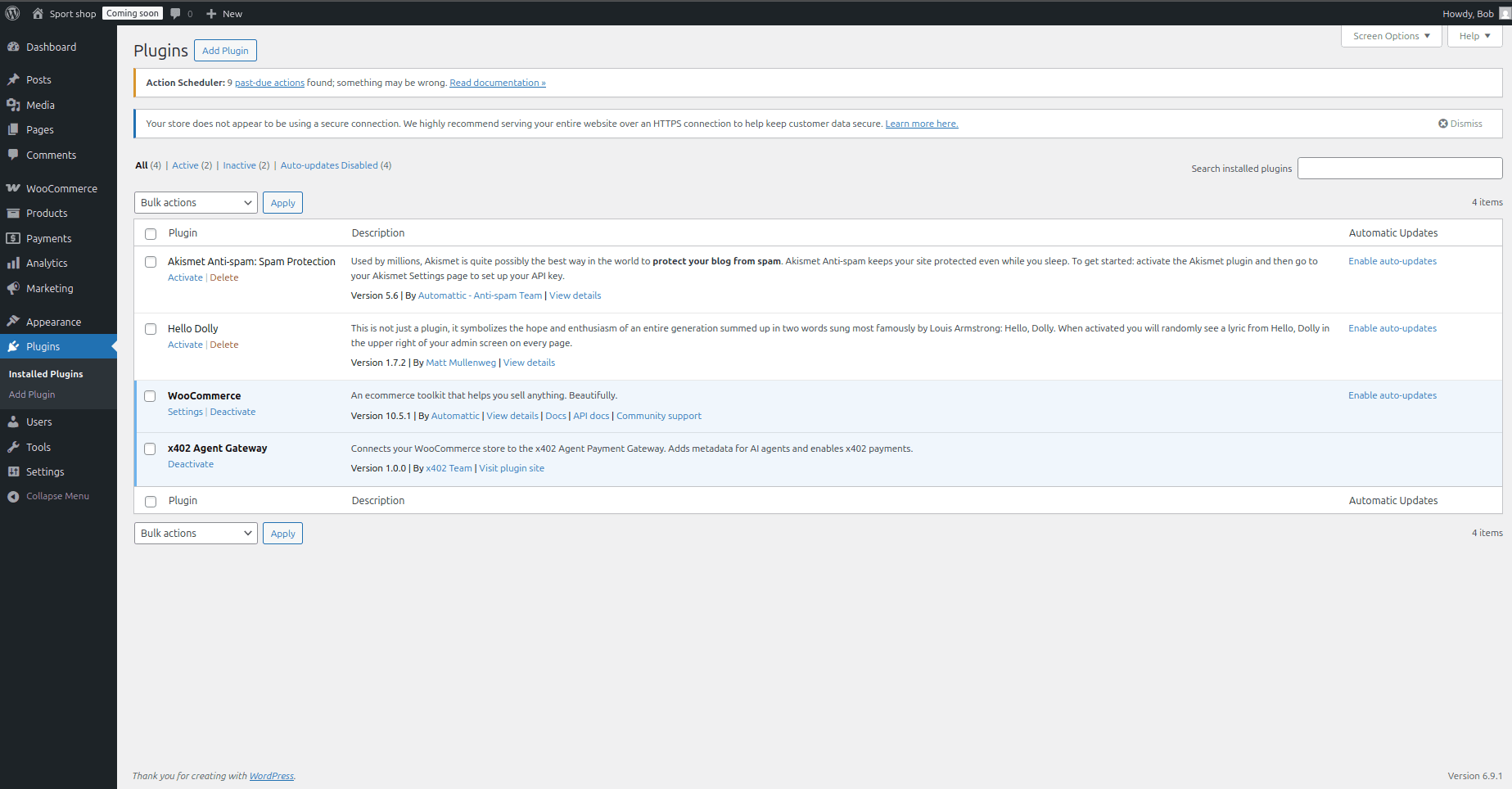
Install the Armoris agent pay gateway plugin on your WordPress site.
Installation Steps
- Click the Download button below to visit the GitHub repository.
- Download the latest
woocommerce-x402.zipfile from the Releases section. - Go to your WordPress Dashboard → Plugins → Add New.
- Click Upload Plugin, select the zip file, and click Install Now.
- Activate the plugin after installation.
Configure Credentials
Paste the Store ID and Client Secret from the previous step into the x402 Agent Payment settings in WooCommerce.
You're Ready!
Your store is now active and ready to process x402 payments. AI agents can discover your products and pay securely on-chain.
System Active
Navigate to your store's shop page and check the headers (using Inspect Element or curl) to see the `402 Payment Required` signal.
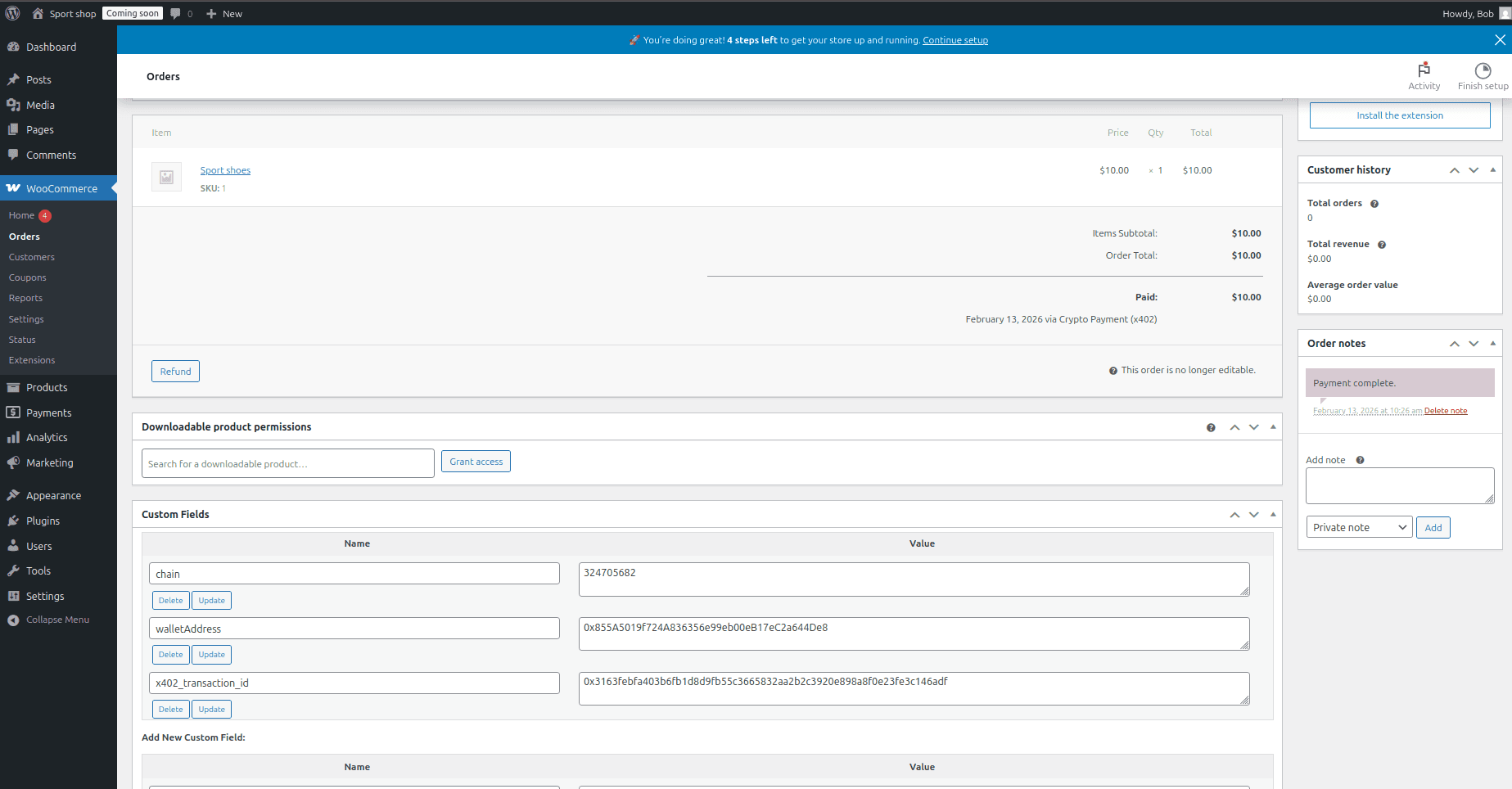
Result: Agents successfully placing orders
Using other platforms?
Native integrations for Shopify, Magento, and more are coming soon.